A short tutorial to fix physics props placement and spawn lag.
Physics Props Fix Anyone who has made a map has at some point used the prop_physics entities, so you're familiar with the effect you see upon map spawn where everything lags for a few seconds as all the physics entities drop and 'settle' in the map. Crates, barrels and other odd items fall to the ground all at once and so on.
There is a simple way to fix that and it takes only a few minutes to do.
For those not familiar with the problem I just mentioned then here's a quick animation showing a common issue:

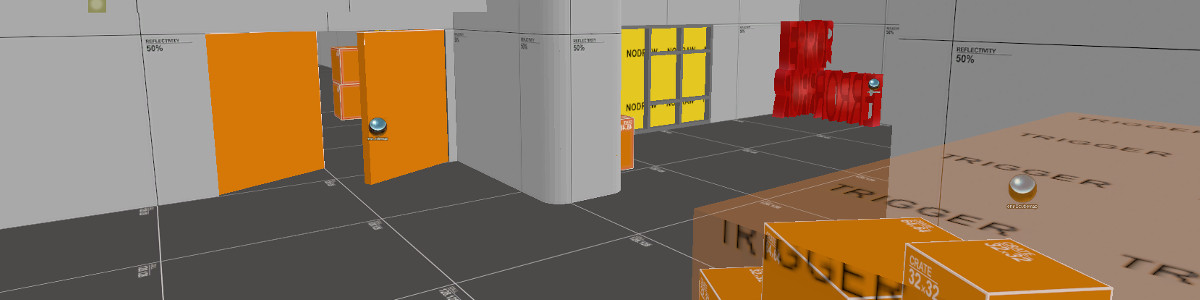
I've uploaded a .vmf for you to play with, its a small enough testing map so that you won't be straining your computer. BOTH hammer and Day of Defeat Source (or any source game for that matter) must be open at the same time, hence the small example map.
There are hud hints to help you remember commands etc In-Game so you don't have to toggle in/out of it while reading this tutorial - However, I still suggest reading this tutorial heh, so you know why your doing the things the map tells you to.
Prep Work
Before I show you how to fix this problem there is a setting we have to turn off in hammer so that this will work properly.
Hammers Autosave: Normally this is a mappers saving grace for preventing lost work due to a crash; however, to fix the physics props issue we need to turn this off.
The copy of the map within hammer must match EXACTLY that of the compiled map, even just hitting the save button makes them different versions and breaks the process as their will be no communication between your game and hammer.
To turn off the autosave feature go to the top menu bar, select Tools > Options,
Then within that dialogue box switch to the General Tab and halfway down you will see the autosave settings,
Just un-check the box if it isn't already and your good to go.
Now you will be fine to compile the map again - for the sake of just fixing props don't bother running either VVIS or VRAD.
The How-To:
- Open Hammer
- Load your map (or the provided Test map)
- Press F9 or the compile button
- Compile only BSP, leave VVIS and VRAD as "No"
- Leave Hammer OPEN and DO NOT SAVE
- Open applicable Source game
- Open the Command Console, type "mapedit MAPNAME"
- Do not load the map via a Create Server button, you must use the mapedit command
- When the map has loaded use the "hosttimescale 10" console command to speed up the process a bit so things are perfectly settled and doesn't take a few minutes but rather seconds.
- Once things are settled you can put the "hosttimescale" value back to 1.
- Type "hammerupdateentity propphysics" and/or "hammerupdateentity propphysicsmultiplayer"
- Exit the Game and Switch to Hammer, you may now save the map with its new changes.
A green Border outline of the props in-game means that the changes were successfully transferred to Hammer, red border means they were not. Double check your steps if you got all red borders on your entities.
* Exaggeration for effect.Now that the props positions have changed in hammer remember to save - also turn on your autosaves again - and lastly go through your prop_physics entities and check on their "Start Asleep" flags. The start of round/map spawn lag will be gone and the props will only perform their physics calculations when something touches them.


sdkmapedit