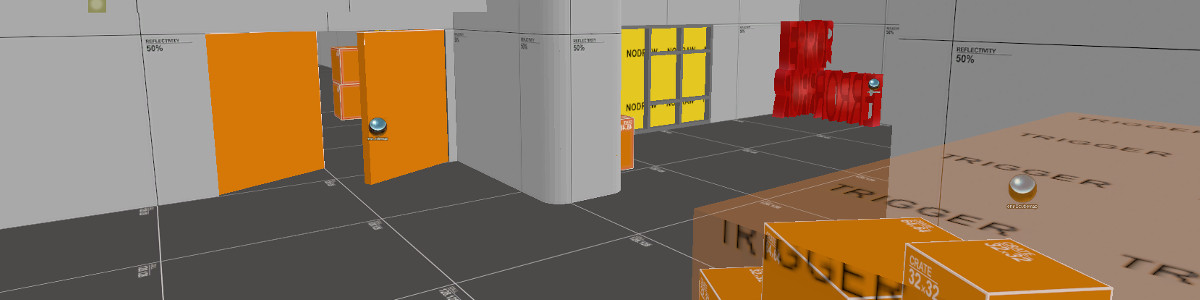
In this tutorial I will show you how to make a light that you will be able to switch on and off. Despite its simpleness, I'm surprised I've never seen it in any maps. So how simple is it? Well to give you some scale, this is easier than adding dustmotes.
So the first thing you will do is make a light or light_spot, and assign it a name, doesn't matter what that will be, just make it something easy to remember like "light_hall" or "central_light," as long as it's nothing stupid like "pickle_jar." You may want to adjust the settings on the light a bit to your liking, but I'm not gonna go into too much detail about that. So now that you've done that, forget about that light. Yeah, you won't be needing to adjust the outputs on it.
Now create a brush along the wall that is 1 unit thick, 10 units tall, and 6 units wide. Make it into a solid. This will become your light switch. now press ctrl + T then click where it says func_detail and start typing in func_button; most likely around the second u, it'll auto-complete it to be a func_button, click apply and click out of it for a second.
This is when you will be texturing the button, pay careful attention. However it is up to you how you want to texture it. Just make sure all of the textures fit.
First click on the face editor and then select the side touching the wall. Click browse and apply the following texture then apply it:
tools/toolsnodraw. Now select the long and skinny sides of the switch while still in face editor. Click browse and find some texture that is white, as long as it isn't cement.
Now select the face that is the largest and faces outward (while in face editor). Click on browse and apply this texture: decals/milswitch003. While the large face is still selected where L, R, Fit, T, B, and C are, click on the C, this should center the switch. I know what you're thinking, "But Liko, I could use that switch decal as a decal like it's supposed to be then make the button invisible." You could do that, but for some strange reason the decal didn't show up in game for me. When you're done you should have something that looks like Screenshot B.
Now that the texturing is done, exit out of the face editor. Select the switch and press Alt + enter. This will bring you to the properties of the switch. Before proceeding to outputs or flags, do the following:
Sounds should be set to "Lightswitch"
Delay Before Reset should be set to 0
Now go to the output tab and set it like so:
OnPressed | inter_light | Toggle || 0.00 | No
In the place of "inter_light" should be the name of your light.
(Screenshot C)
And last but not least, the flags on the button. For the flags, make sure only the following are checked:
Don't Move
Use Activates
(Screenshot D)
So now this should work! Easy peasy. Just as a little side note, if for your light you use a prop with an illuminated skin, the prop will still stay illuminated. Making it switch skins is possible, but it involves some complex outputs. Also you cannot be using dustmotes or glow sprites for your lights. These will also show up in the dark. So with all that said and done, try it out. It should make your level more interesting and will add some new strategy.